Share QuickAdd Packages
A package bundles choices, macros, and their supporting scripts into a single
.quickadd.json file. Use one to move a workflow to another vault or share it
with someone else - they import the file and get your choices without rebuilding
anything by hand. Importing shows a full review of what the package can do first,
so you always see the scripts and macros before they run.
Export a package
Section titled “Export a package”- Open Settings → QuickAdd and scroll to the choices list.
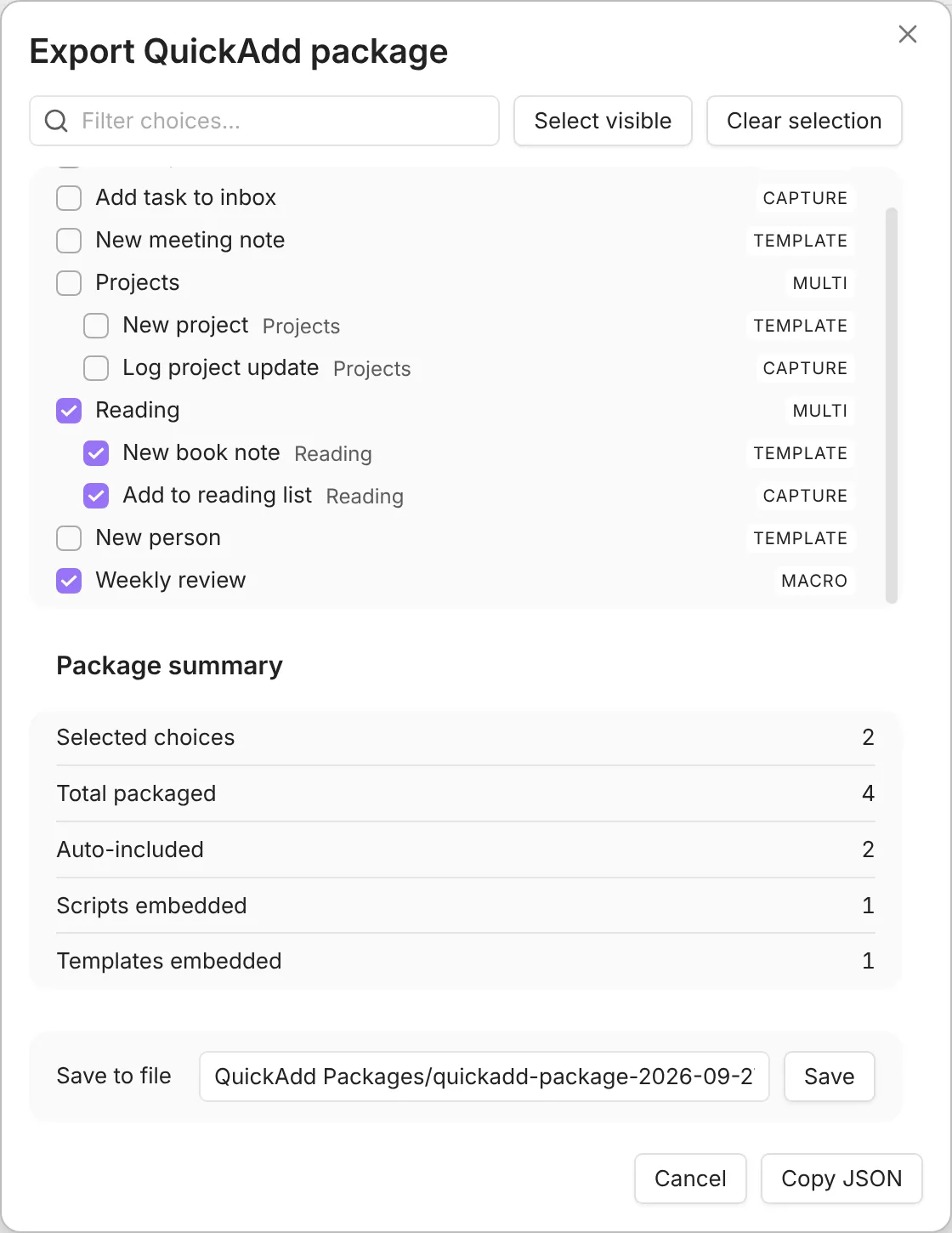
- Click Export package… in the Packages setting.
- Use the filter to find the choices you want to share, then tick their checkboxes. Any dependent choices or scripts are added automatically.
- Review the summary panel to confirm how many choices and assets are included.
- Choose Copy JSON (puts the package on your clipboard), or click Save in the Save to file row to write it to the path shown there. When saving, QuickAdd creates any missing folders inside your vault automatically.
Install an example from the docs
Section titled “Install an example from the docs”Every example page has a Get this workflow card at the top. It installs a ready-made copy of that workflow, so you can try it without building it by hand:
- On the example’s page, check what the Get this workflow card says the package needs, such as another plugin or an API token, then click Copy package. If your browser blocks copying, the card shows the package in a text field; copy it from there, or open View JSON.
- In Obsidian, open Settings → QuickAdd, scroll to Packages, and click Import package….
- Paste. QuickAdd shows the review described below. If any file under Files is marked Executable, open View contents on each one. If you trust the package, tick the acknowledgement, then click Import package.
- Back on the example’s page, expand How to install in the card and follow After importing to finish setup and run the workflow.
Don’t see Import package…? Update QuickAdd, then reopen its settings.
The packages never contain keys or tokens. Where a workflow needs one, After
importing says where to paste it. QuickAdd’s secret fields store it in
Obsidian’s secret storage rather than in data.json; a token you enter in
another plugin’s settings, such as Toggl Track integration, is that plugin’s to
keep.
Importing the same package again offers Overwrite for the choices you imported before. Overwriting replaces those choices, including settings you changed; review any file overwrites too. Choose Skip for anything you want to keep as it is.
Import a package
Section titled “Import a package”- Open Settings → QuickAdd and click Import package….
- Paste the full contents of a
.quickadd.jsonfile into the text box. - QuickAdd analyses the JSON and shows a review of exactly what the package will add and run before you commit - see Review what a package can do.
- Under Choices, pick an action for each choice:
- Import adds a choice that isn’t in your vault yet. It is offered only for those (QuickAdd 2.30.0 or later; earlier versions also offer it for a choice you already have, and it replaces that choice).
- Overwrite keeps the original ID and replaces the existing choice. It is offered only for choices already in your vault. Overwriting a folder keeps the choices inside it that you skipped or added yourself.
- Duplicate copies the choice with new IDs so you can keep both versions.
- Skip leaves the choice untouched.
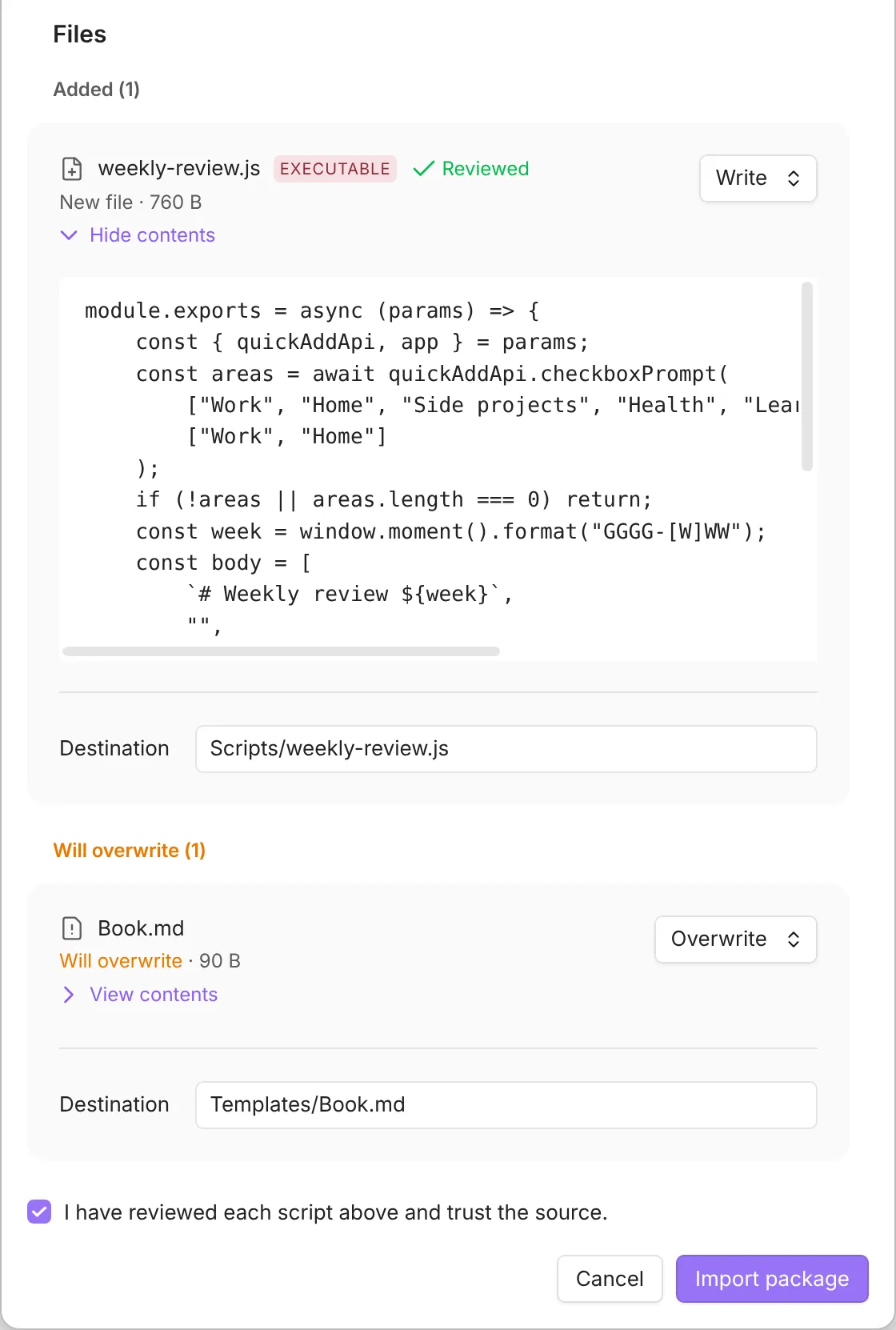
- Under Files, each bundled file is grouped as Added or Will overwrite. Choose Write, Overwrite, or Skip per file, and adjust the destination path if you want it saved elsewhere (templates default to your QuickAdd template folder when one is set). QuickAdd updates the imported choices to reference the new locations.
- If the package runs code, tick the acknowledgement, then click Import package. The choices list updates immediately and a notice summarises what changed. The package’s commands are in the command palette right away, with no reload. Importing doesn’t run a startup macro; it first runs the next time Obsidian starts or you reload QuickAdd.
Review what a package can do
Section titled “Review what a package can do”Importing a package can run scripts and macros that have full access to your vault and the network, so the import screen treats it as a trust decision: it makes everything visible before anything is written.
What the package can do to your vault
Section titled “What the package can do to your vault”A What this package can do panel lists the package’s capabilities, ranked by how much they can affect your vault:
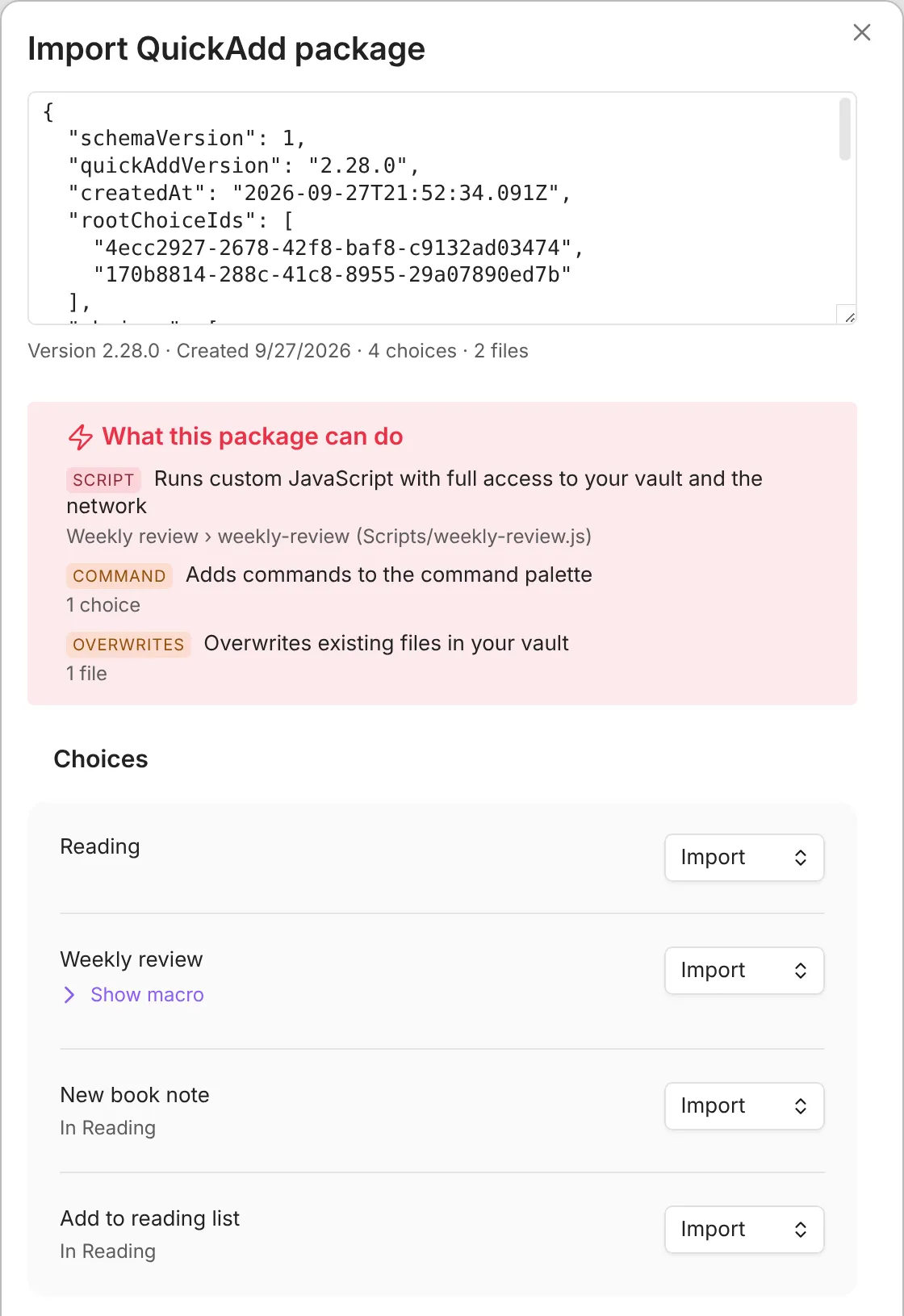
- Runs custom JavaScript - a user script, a script-mode condition, or an inline
js quickaddfence written into a choice’s settings, such as a Capture format. Each runs arbitrary code; open View code on a choice to read the code in its settings. - Runs on startup - a macro set to run automatically every time Obsidian launches, with no interaction.
- Adds commands - choices that register a command in the palette / hotkeys.
- Overwrites existing choices or files, sends content to an AI provider, triggers other Obsidian commands, and similar.
Each row names the choice it comes from. Hover any badge for a plain-language explanation of what it means.
Read the files before you trust them
Section titled “Read the files before you trust them”Every bundled file appears under Files with its destination and size. Click View contents to read a script or template exactly as it will be written. Files that are run as code are marked Executable (regardless of their declared type), and very long or minified scripts are flagged as not fully reviewable.
Besides JavaScript files (.js, .cjs, .mjs), a note, canvas, or Base can
carry runnable code too. One that contains a JavaScript code fence is flagged
with a critical can be run as code capability row and counts toward the
acknowledgement gate below, because it executes when something uses it: a
user-script step runs a note’s first js fence as its script, and
inline js quickadd fences run whenever the file is
used as a template - including as an AI Assistant prompt template, where the
fence runs on every AI call. Other files, such as a Base without code or an
image, can’t run, so you don’t have to open them.
Acknowledge the code before importing
Section titled “Acknowledge the code before importing”When a package can run code, the Import package button stays disabled until you have opened View contents on each bundled executable file and View code on each choice with JavaScript in its settings, then ticked the acknowledgement. The text beside the button says what is left, and reviewed files and choices are marked.
Preview a package from the command line
Section titled “Preview a package from the command line”For scripting or CI, the quickadd:package-preview command returns the same
review as JSON, without opening the modal:
obsidian quickadd:package-preview path=path/to/package.quickadd.jsonAdd decode=true to inline the decoded contents of each bundled file.
quickadd:package-import installs a package the same way the modal does, with
the modal’s default decisions: choices whose id already exists are overwritten,
other choices are added, and templates go to your QuickAdd template folder when
one is set. A package that runs code is refused until you pass
acknowledge=true, which stands in for the modal’s review and acknowledgement.
obsidian quickadd:package-import path=path/to/package.quickadd.json acknowledge=trueUse choices=import|overwrite|duplicate|skip and files=write|overwrite|skip
to force one mode for every choice or bundled file. choices=import never
replaces a choice: if any of the package’s choices is already in your vault,
the import is refused and nothing changes (QuickAdd 2.30.0 or later). Choose
overwrite, duplicate, or skip for those instead.
Check version compatibility
Section titled “Check version compatibility”Packages record the QuickAdd version and a schema number, so future releases can warn you when a file needs a newer plugin. If you see a schema version error, upgrade QuickAdd in both vaults and export the package again.